
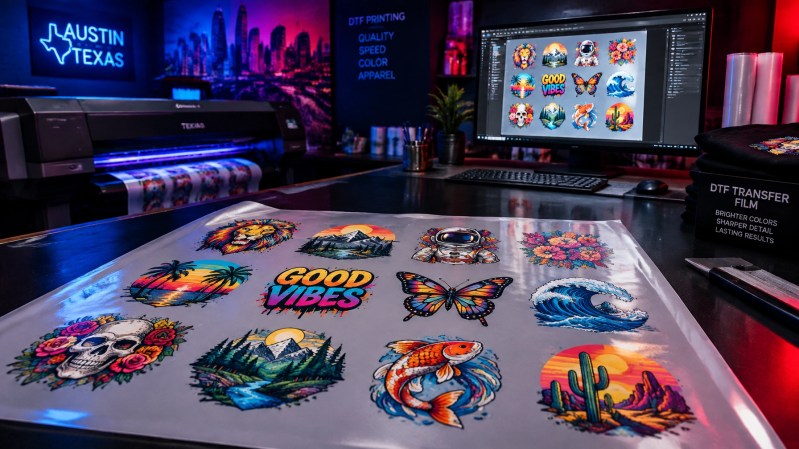
To learn how to prepare a DTF gang sheet, focus on four things: size each design correctly, use an appropriate file format and resolution, maintain spacing between designs, and review the final layout before submitting it. If you are preparing a DTF gang sheet for production, Austin DTF accepts common artwork formats for gang sheet printing, including PNG, JPG, and SVG files. Careful DTF transfer preparation helps ensure that your artwork is ready for production and application.
What Is a DTF Gang Sheet?
A DTF gang sheet is one sheet of transfer film containing multiple apparel designs. Instead of printing each design on a separate sheet, you arrange several designs together on one layout.
Gang sheets are useful for:
- Clothing brands producing multiple designs
- Print shops preparing customer orders
- Schools and teams organizing apparel graphics
- Event organizers creating merchandise
- Small businesses ordering branded transfers
- Creators testing several designs at once
The main benefit is better use of the available transfer film. You can place different logos, graphics, names, or sizes on one sheet and separate them after printing.
A DTF gang sheet can include repeated versions of one design or a combination of unrelated designs. The layout depends on the garments, placements, and quantities you plan to produce.
How to Prepare a DTF Gang Sheet
Follow these steps before you upload a finished file for DTF transfer printing.
1. Prepare Your Artwork
Start with the final artwork you want printed. Check the design for spelling, missing elements, rough edges, and unwanted objects.
Use artwork that is suitable for heat transfer printing. If you are working with a raster image, confirm that it has enough pixels for the finished print size. If you are using vector artwork, make sure the file opens correctly and retains the intended appearance.
Why it matters: The submitted artwork controls the printed result. A printer may not automatically correct missing artwork, spelling errors, or design changes.
2. Set the Correct Design Sizes
Size every design for its intended garment placement before placing it on the sheet. Do not assume that one size works for every shirt, hoodie, bag, or uniform.
Consider:
- The garment size
- The print location
- The width and height of the design
- The intended finished appearance
- The available space on the gang sheet
Keep the proportions locked when resizing artwork. This prevents the design from becoming stretched or compressed.
Why it matters: A design that looks correct on your computer may be too large, too small, or incorrectly proportioned when applied to a garment.
3. Remove Unwanted Backgrounds
Remove backgrounds that should not appear on the finished transfer. For example, a logo intended to print without a rectangular background should be placed on a transparent canvas.
Review the edges of the artwork for:
- White boxes
- Colored backgrounds
- Unwanted shadows
- Semi-transparent pixels
- Background objects
- Visible design software guides
A transparent background is often appropriate for apparel artwork, but always review the finished design before exporting.
Why it matters: Unwanted background pixels can become part of the printed transfer.
4. Use Appropriate Resolution
Prepare raster artwork at a resolution appropriate for the intended print size. 300 DPI is a commonly recommended target for high-quality DTF artwork.
Resolution and pixel dimensions work together. Changing the DPI setting in a file does not create new image detail. For example, a small image labeled as 300 DPI may still look pixelated if it does not contain enough pixels for the final print size.
Why it matters: A high-resolution source file helps preserve sharp edges, small details, and readable text.
5. Arrange Designs Efficiently
Place designs on the sheet so the available film is used effectively. Rotate artwork when appropriate, but check the orientation before submitting the file.
Helpful layout practices include:
- Place designs in organized rows or groups
- Keep similar sizes together when useful
- Rotate only when it improves the layout
- Keep text facing the correct direction
- Avoid unnecessary empty areas
- Leave room for cutting and handling
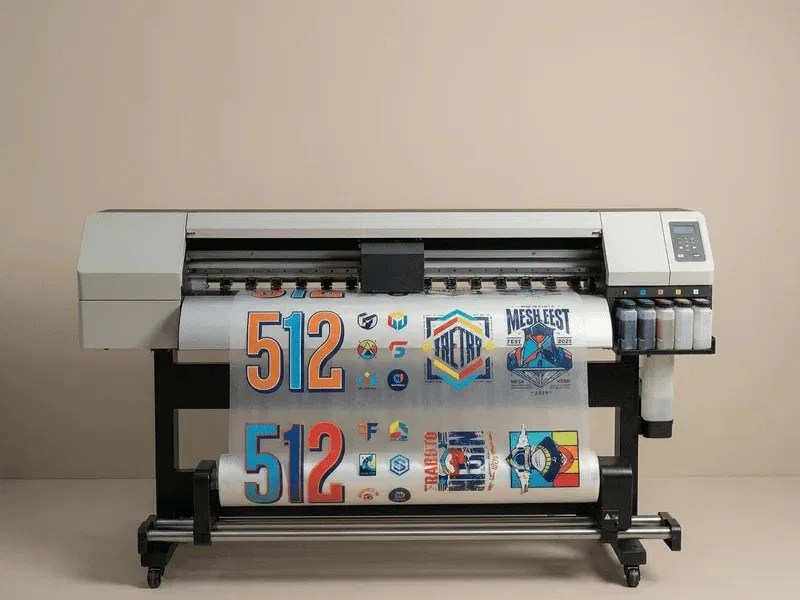
Why it matters: An organized DTF gang sheet layout is easier to inspect, separate, cut, and apply.
6. Leave Enough Spacing
Do not allow designs to touch or overlap. Leave a consistent gap between each design so individual transfers can be separated and handled.
The correct spacing depends on the printer’s workflow, cutting method, and production guidelines. Follow the specific template or instructions provided by your DTF printer when available. Avoid relying on a universal spacing measurement.
Why it matters: Designs that touch can be difficult to cut apart cleanly. Overlapping artwork can also create confusion during application.
7. Check the Final Gang Sheet
Review the complete sheet at its actual size before exporting it. Inspect every design, not just the largest graphics.
Check:
- Design dimensions
- Placement
- Orientation
- Spelling
- Colors
- Transparency
- Spacing
- Edges
- Missing elements
- Overall sheet dimensions
Why it matters: A final review can catch problems before the file enters production.
8. Upload the Finished File or Use a Gang Sheet Builder
After preparing your layout, choose the workflow that fits your project.
If you already arranged the entire sheet, you can upload your finished DTF gang sheet.
If you have separate designs and need help arranging them, use the gang sheet builder to create the layout online.
Why it matters: Choosing the right workflow reduces unnecessary editing and helps you submit the file in the format you intended.
What File Format Is Best for DTF Transfers?
The best file format depends on the artwork and the printer’s current upload requirements. Austin DTF’s upload page currently supports PNG, JPG, JPEG, and SVG files.
PNG
A PNG file is useful for artwork that needs a transparent background. It is commonly used for logos, illustrations, text designs, and other raster artwork.
Use a DTF PNG file when:
- The artwork has transparency
- You need to preserve clean edges
- The design is already rasterized
- The file has sufficient pixel dimensions
JPG
A JPG file can be useful for artwork that does not require transparency, such as a finished image with a solid background. JPG files use compression, so inspect the design for artifacts before uploading.
Use a DTF JPG file only when the background and image quality match the intended result.
SVG
An SVG file is a vector format that can be useful for logos, lettering, and scalable graphics. SVG artwork may retain clean shapes when resized, but the file should be opened and checked before submission.
Use a DTF SVG file when your artwork is created as vector artwork and the printer accepts that format.
Always check the current upload instructions before ordering. File support and production requirements can change.
What Resolution Should DTF Artwork Be When You Prepare a DTF Gang Sheet?
DTF artwork should generally be prepared at 300 DPI when possible, but the original image quality and intended print size also matter.
A file’s DPI setting describes how the image is interpreted for printing. It does not automatically add detail. Increasing the DPI metadata on a small, blurry image will not make the artwork sharp. Adobe’s official guides on image size and resolution and printed image resolution are useful references if you want a deeper explanation of how resolution, pixel dimensions, and print size work together.
For better results:
- Start with a high-quality original file
- Create raster artwork at the intended print size
- Use 300 DPI as a common preparation target
- Avoid enlarging small images excessively
- Inspect fine text and edges at full size
- Confirm that embedded raster images inside vector files are also clear
The final DTF transfer size should be selected before preparing the gang sheet. Artwork created too small and enlarged later may lose detail.
How Much Space Should You Leave Between DTF Designs?
Leave enough space for each design to be separated, cut, and handled without touching nearby artwork. Designs should not overlap.
There is no universal spacing measurement that applies to every printer. Production equipment, cutting methods, and handling preferences can differ. Follow the printer’s template or current DTF design spacing guidelines when provided.
Use consistent spacing across the sheet. A consistent layout is easier to inspect and makes the finished transfers easier to organize after printing.
How Large Should a DTF Transfer Be?
A DTF transfer size depends on the garment size, placement, design dimensions, and intended use. Measure the garment and choose the finished print size before creating the gang sheet.
Common placement considerations include:
- Left chest: Use a smaller design sized to fit the upper chest area.
- Full front: Measure the usable front area and account for the garment size.
- Full back: Choose dimensions that fit the back without extending into seams or edges.
- Sleeve: Consider the narrow width and the direction of the artwork.
- Youth apparel: Use smaller dimensions than adult garments when appropriate.
There are no universal sizing rules for every garment. A size that works for an adult large shirt may not work for a youth shirt or a sleeve. Record the intended placement and finished dimensions for each design before arranging the sheet.
DTF Gang Sheet Layout Tips
Use these practices when arranging multiple designs:
- Keep designs organized. Use rows, columns, or groups that make the sheet easy to review.
- Avoid overlapping artwork. Each design should have its own clear area.
- Group similar sizes when useful. This can simplify sorting and production.
- Check orientation. Make sure text and graphics face the intended direction.
- Leave enough room between designs. Spacing supports cutting and handling.
- Keep important artwork away from edges. Follow the printer’s sheet boundaries and avoid placing critical details too close to them.
- Review the entire sheet. Zoom out and inspect the overall layout before exporting.
A clean layout helps you identify missing designs, unnecessary empty space, and incorrect artwork placement. This review step is one of the most practical parts of how to prepare a DTF gang sheet without creating avoidable production issues.
Common DTF Gang Sheet Mistakes to Avoid
Low-Resolution Artwork
Small or blurry files may look pixelated when enlarged. Start with artwork that contains enough detail for the intended DTF transfer size.
Incorrect Dimensions
A design that is not sized for its garment placement may produce an unwanted finished result. Confirm the dimensions before arranging the sheet.
Unwanted Backgrounds
A background that should be transparent may print as part of the transfer. Inspect the artwork and remove unwanted background elements.
Designs Touching Each Other
Touching designs can be difficult to separate. Keep a clear and consistent gap between each design.
Incorrect Spelling
Review every word, name, number, and product detail. Text errors are easier to correct before printing.
Missing Artwork
Compare the final sheet with your original order list. Make sure every requested design is present.
Incorrect Colors
Review colors against the original artwork. Pay particular attention to brand colors, small details, and designs intended for dark garments.
Artwork Too Close to the Edge
Keep important design elements inside the usable sheet area. Follow the printer’s layout guidelines when available.
Forgetting to Review the Final Sheet
Do not rely only on the design files you started with. Inspect the complete exported gang sheet.
Assuming the Printer Will Automatically Fix Artwork
Printers typically produce the file that is submitted. Confirm dimensions, transparency, spacing, spelling, and layout before ordering.
Should You Upload a Finished Gang Sheet or Build One Online?
Choose the workflow that matches your artwork preparation process.
Option 1: Upload a Finished Gang Sheet
Upload a finished file if you have already arranged all designs on the correct sheet size.
This option is suited to:
- Designers who prepare layouts in professional software
- Print shops with established production files
- Clothing brands with repeatable templates
- Customers who want to control the complete layout
- Orders that are already production-ready
You can upload your finished DTF gang sheet and select the available sheet option before ordering.
Option 2: Build a Gang Sheet Online
Use an online builder if you have separate designs and want to arrange them through the ordering process.
This option is suited to:
- Beginners preparing their first sheet
- Customers without gang sheet layout software
- Small businesses arranging several graphics
- Users who want a simpler online workflow
Austin DTF provides a gang sheet builder for creating a layout before placing an order.
Both workflows require you to review the artwork, sizing, spacing, and final design details before submission.
How to Check Your Gang Sheet Before Ordering
Use this pre-production checklist:
- Correct sheet dimensions
- Correct artwork size
- High-resolution artwork
- Transparent backgrounds where needed
- Adequate spacing
- Correct spelling
- Correct colors
- No missing designs
- No accidental overlapping
- File opens correctly
- Correct file format
- Final design matches the intended garment placement
Save the final version with a clear file name so you can identify it later. If you make changes after reviewing the sheet, inspect the exported file again before uploading it.
How Much Does DTF Gang Sheet Printing Cost?
Austin DTF’s current upload gang sheet product lists pricing at $0.02 per square inch. The upload workflow is designed for customers who already have their artwork arranged and want to submit the finished file for DTF transfer printing.
Pricing and available product options can change. Verify the current pricing and sheet options on the upload your finished DTF gang sheet product page before ordering.
DTF Gang Sheet FAQ
What is a DTF gang sheet?
A DTF gang sheet is one transfer sheet containing multiple apparel designs. If you are learning how to prepare a DTF gang sheet, this means placing different graphics, repeated logos, names, or sizes on one sheet. After printing, the designs can be separated and applied to compatible garments. Gang sheets help make practical use of transfer film when you need several designs for an apparel project.
What file format is best for DTF transfers?
PNG is often useful when your design needs a transparent background. JPG can work for artwork with a solid background, while SVG is useful for vector logos and scalable graphics. The best choice depends on your artwork and the printer’s current upload requirements. Check the product page before submitting a PNG, JPG, or SVG file.
Is 300 DPI good for DTF transfers?
Yes. 300 DPI is a commonly recommended preparation target for high-quality DTF artwork. However, changing a file’s DPI metadata does not add image detail. The original pixel dimensions, source quality, and intended finished transfer size also matter. Start with a clear file and inspect the artwork at the final print size.
How much space should I leave between designs?
Leave enough space so designs do not touch or overlap and can be separated and handled after printing. The correct amount depends on the printer’s equipment and production guidelines. Follow the specific template or instructions provided by your printer instead of relying on one universal measurement.
Can I upload my own DTF gang sheet?
Yes. You can upload your own finished gang sheet through Austin DTF’s upload gang sheet product page. Before ordering, check the sheet dimensions, artwork size, file format, transparency, spacing, spelling, and overall layout. The submitted file should match the artwork you want printed.
Can I build a DTF gang sheet online?
Yes. Austin DTF offers an online gang sheet builder for customers who want to arrange multiple designs before ordering. This workflow can suit customers who have separate artwork files or prefer not to create the complete layout in design software.
What size should a DTF transfer be?
The correct size depends on the garment, placement, design dimensions, and intended use. Measure the usable area for a left-chest, full-front, full-back, sleeve, or youth-apparel design before creating the gang sheet. There is no universal size that fits every garment or placement.
How do I avoid mistakes before ordering a gang sheet?
Review the complete file before submission. Confirm the sheet dimensions, design sizes, resolution, transparent backgrounds, spacing, spelling, colors, orientation, and file format. Make sure no designs are missing or overlapping. Open the final exported file and compare it with your intended garment placements before placing the order.
Have Your Gang Sheet Ready to Print?
If you have finished preparing a DTF gang sheet, upload your finished DTF gang sheet to Austin DTF and order DTF transfers based on the current product pricing. Review the file carefully, choose the appropriate sheet option, and submit your artwork when it is ready.
For hard surfaces such as tumblers, phone cases, and other compatible products, see Austin DTF’s UV DTF transfers.
